
Service Call Requirements
The Service Call Requirements page is the “home base” for this extension. Service call inventory is purchased, transferred and reserved from this page.
LOAD ORDERS – When the page first opens, the requirements list is empty. Use this button to build the list of service order lines. A dialog box will first open, allowing filters can be defined and saved to reduce the number of lines returned.

ACTION REQUIRED FILTER – Filter the worksheet by one of the actions:
- None
- Reserve
- Purchase
- Transfer
STATUS FILTER – Filter the worksheet by one of the status.
REFRESH – The refresh button will reload the lines with the currently selected filters.
CREATE – After quantities have been entered for order, and the Action Required selected, the CREATE button will execute the action.
WORKSHEET DETAILS
SALES ORDER NO – Displays the sales order number. Only sales orders marked as service calls will display.
PLANNED SHIPMENT DATE – Displays the planned shipment date from the sales order line. This is the default method the list is sorted by, with the first shipments at the top.
ITEM NO – Displays the item number from the sales order.
ROUTE – Displays the route assigned to the Tech location.
TECH LOCATION – Displays the location from the sales order.
QUANTITY ON ORDER – Displays the quantity ordered from the sales order.
QUANTITY RESERVED– Displays the quantity already reserved on the sales order.
TECH LOCATION QTY – Displays the quantity already available at the TECH location. This quantity available will adjust based on the selections of all lines in this worksheet.
MAIN LOCATION QTY – Displays the quantity available to transfer from MAIN to the TECH location. This quantity available will adjust based on the selections of all lines in this worksheet.
STATUS – Displays the current status of the line from Service Call Setup. Clicking on the field will open the Service Call Links page.
ACTION REQUIRED – The action required is determined when the lines are loaded, but can be changed as required. The options are:
- NONE – The sale line is already fully reserved.
- RESERVE – There is enough on hand at the TECH location to fulfil the demand.
- PURCHASE – There is not enough on hand at either TECH or MAIN. A purchase order will be created to receive inventory into MAIN.
- TRANSFER – There is enough inventory at MAIN, but not at TECH. The transfer order will be created move inventory from MAIN to TECH.
QUANTITY – Enter the quantity to add to a purchase or transfer order.
FACTBOX – Display the FactBox for more detail about the service call line.
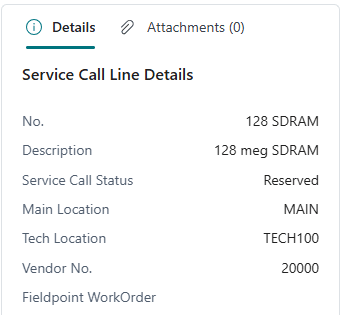
FIELDPOINT WORKORDER – If FieldPoint is installed, the Work Order on the Sales Order will be displayed here.
CREATING PURCHASE ORDERS
When creating purchase orders, the user will be asked if they want to create one purchase order per line, one per vendor, or add to an existing PO:
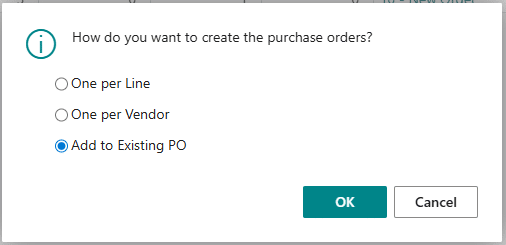
Creating one per line will create a separate purchase order per line on the worksheet that has the action PURCHASE.
Creating one per vendor will combine all purchase lines with the same VENDOR assigned onto a single purchase order.
Add to Existing PO will attempt to locate an existing, open purchase order for the vendor and if found will add the requirements to it. If none is found, the One per Vendor will be used.
After the purchase order(s) are created, a message box will appear with the new purchase orders listed.
The Service Call Requirements list will refresh and all the lines that were added to purchase orders will have their status updated to ON PO.
When the linked PO is received, the extension will automatically create a transfer order.
CREATING TRANSFER ORDERS
When creating transfer orders, the user will be asked if they want to create one transfer order per line or one per tech location:
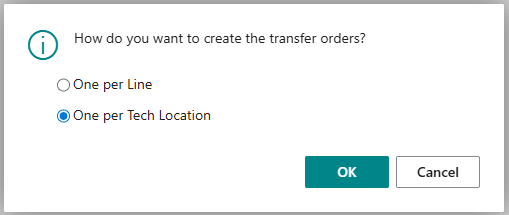
Creating One per line will create a separate transfer order per line on the worksheet that has the action TRANSFER.
Creating One per Tech Location will combine all transfer lines with the same TECH location onto a single transfer order.
After the transfer order(s) are created, a message box will appear with the new transfer orders listed. The Service Call Requirements list will refresh and all the lines that were added to transfer orders will have their status updated to ON TRANSFER.